
Server Setup
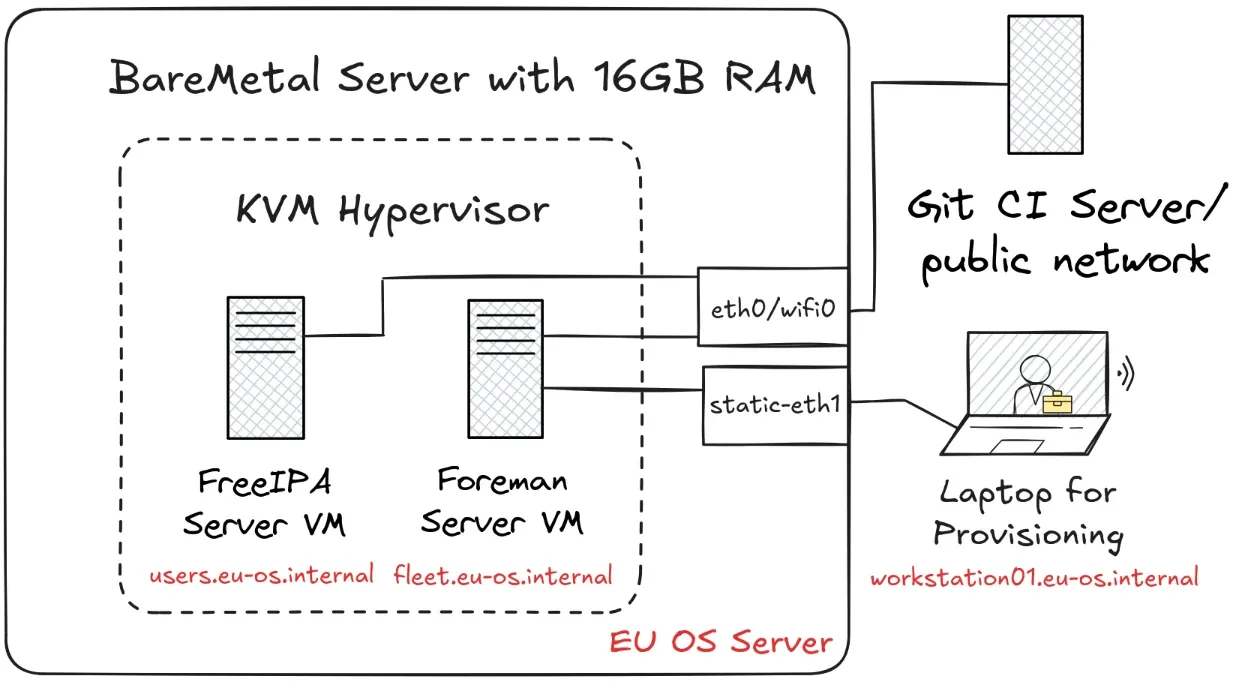
Hardware for a Proof of Concept
To make testing EU OS affordable (and due to the lack of budget for the EU OS process), the following recommendations for hardware are more or less the minimum. Better hardware is always better.
- EU OS Server with 16GB RAM (e.g. Lenovo ThinkCentre M75q Tiny Gen 2 with AMD Ryzen 5 Pro, 256GB SSD, 16GBRAM in 2025 second-hand for 400€)
- Laptop to test provisioning (e.g. Lenovo Thinkpad T14s Gen 2 with PXE support in UEFI mode)
- optional: FIDO2 token to demonstrate unlocking of full disk encryption with hardware token (e.g. USB YubiKey 5A in 2025 new for 30€)
- few network cables
- wifi router or an EU OS Server with a 2nd ethernet port (you need one to connect the Laptop)
Configuration of the EU OS Server
The Foreman Server VM must use an OS that is supported by the software Foreman with Katello plugin. The quickinstall manual proposes any Enterprise Linux 9. Hence, EU OS proposes for the PoC to use Almalinux 9.6 (most recent as of November 2025). To avoid confusion, EU OS proposes to use AlmaLinux 9.6 on all three systems: both VMs and also the EU OS Server.
Download the Boot ISO for Almalinux 9 from https://almalinux.org/get-almalinux/. Copy it on a USB pendrive (e.g. with the Fedora Media Writer) and boot the EU OS Server from it. Then log in. Then follow the steps in the setup-server.sh. Note that the script cannot be run automatically as it requires few values been set manually.
AlmaLinux Generic Cloud images rely on cloud-init to setup default users/passwords. So you should put into your $HOME a corresponding ci_user_data_ssh_auth_pass_pubkey. For this setup, you may want to use in the VMs the dafault user "almalinux", because that is what is used in the documents here.
# sudo usermod -a -G libvirt,wheel your_existing_user
# sudo useradd -m -G libvirt,wheel your_new_user

sudo hostnamectl hostname server.eu-os.internal

# optional: convenience tools
sudo dnf install -y wireguard-tools btop skopeo hwinfo fastfetch fish

# for wifi on EU OS Server
sudo dnf install -y NetworkManager-wifi

sudo dnf install -y qemu-kvm libvirt virt-install bridge-utils libvirt-daemon-kvm

# bring up virtualisation service
sudo systemctl enable --now libvirtd

# setup wifi, so that the ethernet interface can be disabled and mapped to the VM
sudo nmcli device wifi connect "<WIFI-SSID>" --ask # connect to wifi with password

sudo chmod og+r /var/lib/libvirt/images/

sudo wget -o /var/lib/libvirt/images/AlmaLinux-9-GenericCloud-9.6-20250522.x86_64.qcow2 https://repo.almalinux.org/almalinux/9/cloud/x86_64/images/AlmaLinux-9-GenericCloud-9.6-20250522.x86_64.qcow2

# create 2 VMS for freeipa and foreman
sudo qemu-img create -f qcow2 -b /var/lib/libvirt/images/AlmaLinux-9-GenericCloud-9.6-20250522.x86_64.qcow2 -F qcow2 /var/lib/libvirt/images/alma9-freeipa.qcow2 20G
sudo qemu-img create -f qcow2 -b /var/lib/libvirt/images/AlmaLinux-9-GenericCloud-9.6-20250522.x86_64.qcow2 -F qcow2 /var/lib/libvirt/images/alma9-foreman.qcow2 40G

export LIBVIRT_DEFAULT_URI=qemu:///system
# for fish: set -Ux LIBVIRT_DEFAULT_URI qemu:///system

virt-install \
    --name alma9-freeipa \
    --memory 2048 \
    --machine q35 \
    --vcpus 6 \
    --cpu host-passthrough \
    --import \
    --cloud-init user-data="ci_user_data_ssh_auth_pass_pubkey",meta-data="ci_keyboard" \
    --osinfo name=almalinux9 \
    --disk /var/lib/libvirt/images/alma9-freeipa.qcow2 \
    --virt-type kvm \
    --memorybacking=source.type=memfd,access.mode=shared \
    --network default,mac=52:54:00:00:00:12 \
    --noautoconsole

virt-install \
    --name alma9-foreman \
    --memory 10240 \
    --machine q35 \
    --vcpus 6 \
    --cpu host-passthrough \
    --import \
    --cloud-init user-data="ci_user_data_ssh_auth_pass_pubkey",meta-data="ci_keyboard" \
    --osinfo name=almalinux9 \
    --disk /var/lib/libvirt/images/alma9-foreman.qcow2 \
    --virt-type kvm \
    --memorybacking=source.type=memfd,access.mode=shared \
    --network default,mac=52:54:00:00:00:11 \
    --noautoconsole

virsh list

# Setup DNS entries for libvirt with MAC set by libvirt upon VM creation
virsh net-update default add ip-dhcp-host \
      "<host mac='52:54:00:00:00:12' name='users' ip='192.168.122.112' />" \
       --live --config
virsh net-update default add ip-dhcp-host \
      "<host mac='52:54:00:00:00:11' name='fleet' ip='192.168.122.111' />" \
       --live --config

# later not needed when DNS is configured fully with freeipa
virsh net-update default add dns-host \
      "<host ip='192.168.122.112'><hostname>users.eu-os.internal</hostname></host>" \
       --live --config
virsh net-update default add dns-host \
      "<host ip='192.168.122.111'><hostname>fleet.eu-os.internal</hostname></host>" \
       --live --config

virsh net-dumpxml default # check config, edit with (requires restart of network): virsh net-edit default


# setup enp2s0f1 as mactvtap for foreman VM
sudo nmcli connection modify enp2s0f1 connection.autoconnect false
sudo nmcli connection down enp2s0f1
sudo virsh attach-interface --domain alma9-foreman --type direct --source enp2s0f1 --model virtio --config

# optional: add swap partition to foreman
sudo qemu-img create -f raw /var/lib/libvirt/images/alma9-foreman-swap.img 20G
virsh attach-disk alma9-foreman --source /var/lib/libvirt/images/alma9-foreman-swap.img --target vdb --live --persistent

# enable autostart
virsh autostart alma9-freeipa
virsh autostart alma9-foreman

# get IP address
virsh domifaddr --source agent alma9-freeipa
virsh domifaddr --source agent alma9-foreman

# start VMs
virsh start alma9-freeipa
virsh start alma9-foreman
#cloud-config
# kate: hl yaml;

ssh_pwauth: true # sshd service will be configured to accept password authentication method
password: changeme # Set a password for almalinux
chpasswd:
  expire: false # Don't ask for password reset after the first log-in
ssh_authorized_keys: # Replace with your ssh public key/keys for publickey authentication
  - ssh-rsa AAAAB3NzaC1yc2EAAAABIwAAAQEAykgY+AnIUy3wzTFtQOtvwE/DQjcv5JKKu6eb0T/pvRqmIedVB2RVObI5DhZQGEpLKLF2Hugr1fy03bG98dNL/kFiStmH5nJ9vLGs9fGIHRUq+NpRJPB37vx19wGqd0YzAJeTanXDd8ZF2ZoBzCWaO5qqR/9c41m/DZ3GthxoryoEf0eJ04J4LFMhDcT5rC9c5PrcLqiwHcw80z9OZW5c5Npt7oL9G9Ymy7zCSysGcDJjDRXiAaPUSI59TztzB6W+MSungzsbQ8g3NPQJkPdMCtciJZ1dOFo+4+M+LCjvDG2lsdUxO8l4U34YxEhAhmZS0JrF0LoP9Ga+E5tf3Wcnaw== robert
#cloud-config
# kate: hl yaml;

keyboard:
  layout: de
  # variant: neo
Access with Wireguard
If the wifi does not allow to ssh into the EU OS Server, it is best to setup a VPN to reach the Server conveniently. This could be done with wireguard:
# copy config in place
sudo vim /etc/wireguard/wg0.conf

# launch wireguard service
sudo systemctl enable --now wg-quick@wg0
Snapshots
The following commands allow for VM snapshots to be created or loaded:
# if swap is used: remove swap partitition from foreman
virsh detach-disk alma9-foreman vdb --live --persistent

# create snapshots
virsh snapshot-create-as alma9-foreman alma9-foreman-before-foreman-install
# recover snapshot
virsh snapshot-revert    alma9-foreman alma9-foreman-before-foreman-install

# add swap again if used:
virsh attach-disk alma9-foreman --source /var/lib/libvirt/images/alma9-foreman-swap.img --target vdb --live --persistent
SSH Tunnel
For convenient access to the VMs: local ssh port forwarding and installation of root CA.
- add foreman and ipa to host file of the EU OS Server:
192.168.122.111 fleet.eu-os.internal foreman fleet
192.168.122.112 users.eu-os.internal ipa users
ssh -TL 9090:foreman:9090 -L 9443:foreman:443 -L 2223:ipa:22 192.168.1.29with the last IP the one of the EU OS Server (could be the Wireguard IP)sudo curl -kL -o /etc/pki/ca-trust/source/anchors/IPA_CA.crt http://users.eu-os.internal/ipa/config/ca.crt && sudo update-ca-trustto install the certificate on the computer that you use to access the web interfaces of foreman and freeipa
The next step is to setup FreeIPA for User Management, so that it can create certificates for needed for the Foreman setup.
Container Image
Many use cases of Linux on the desktop in the public sector rely on an existing Linux distribution (such as Ubuntu or Debian) and develop customisations on top. System administrators build then an image that contains original (upstream) packages as well as custom packages and custom configuration.
User Management
Manage Users